IPHONE / FIRST INSTALL
Buying and opening Shadowrocket on iPhone
Open the App Store product page on your iPhone and verify the app using the three checks before expanding the compatibility section to confirm your device is supported. System requirements are as listed on the App Store page; don’t rely on minimum requirements quoted in other articles. If the store says your device isn’t compatible, resolve that issue before trying to buy the app again.
For your first purchase, tap the price to begin Apple’s purchase confirmation. Check the app name, amount and account, complete any authentication required by the system, then wait for the download to finish. Storefronts show prices in local currencies; the amount on the confirmation screen is the final price. If a transaction is pending, check the store message and purchase history before proceeding. Don’t assume an incomplete transaction has succeeded.
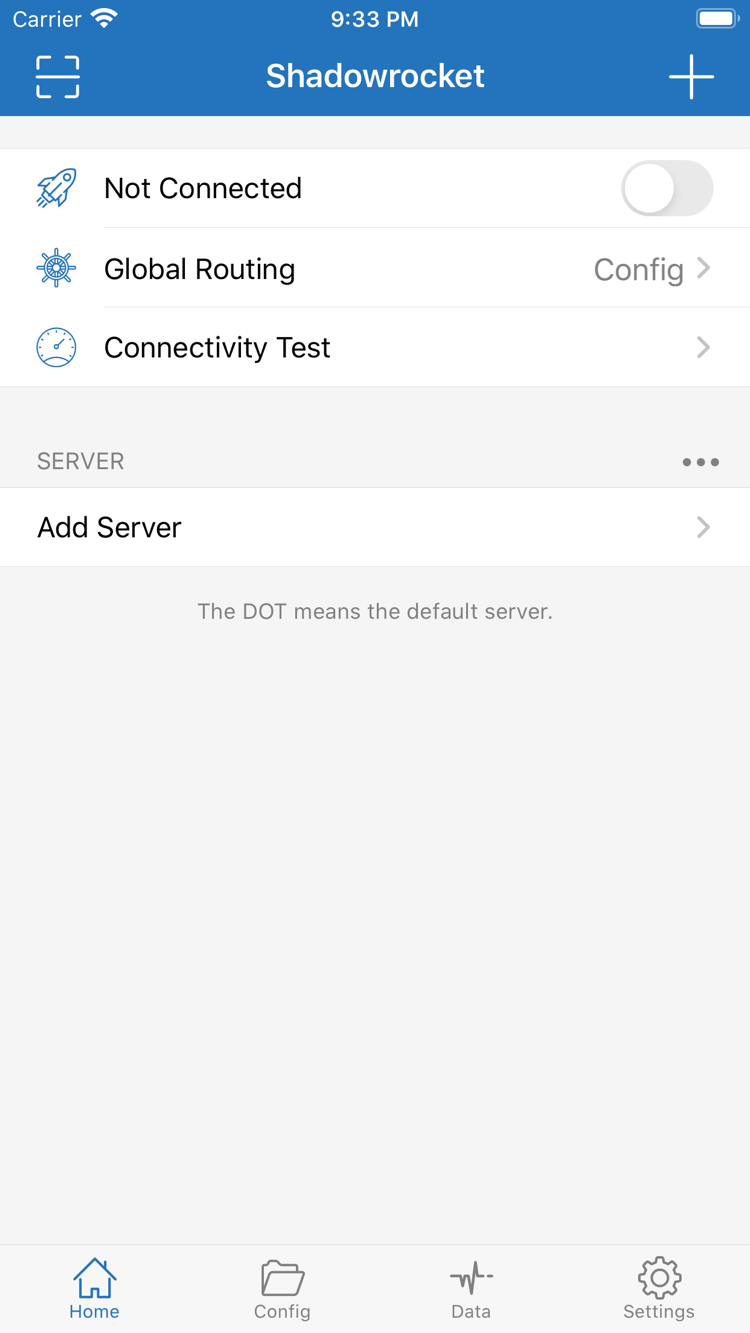
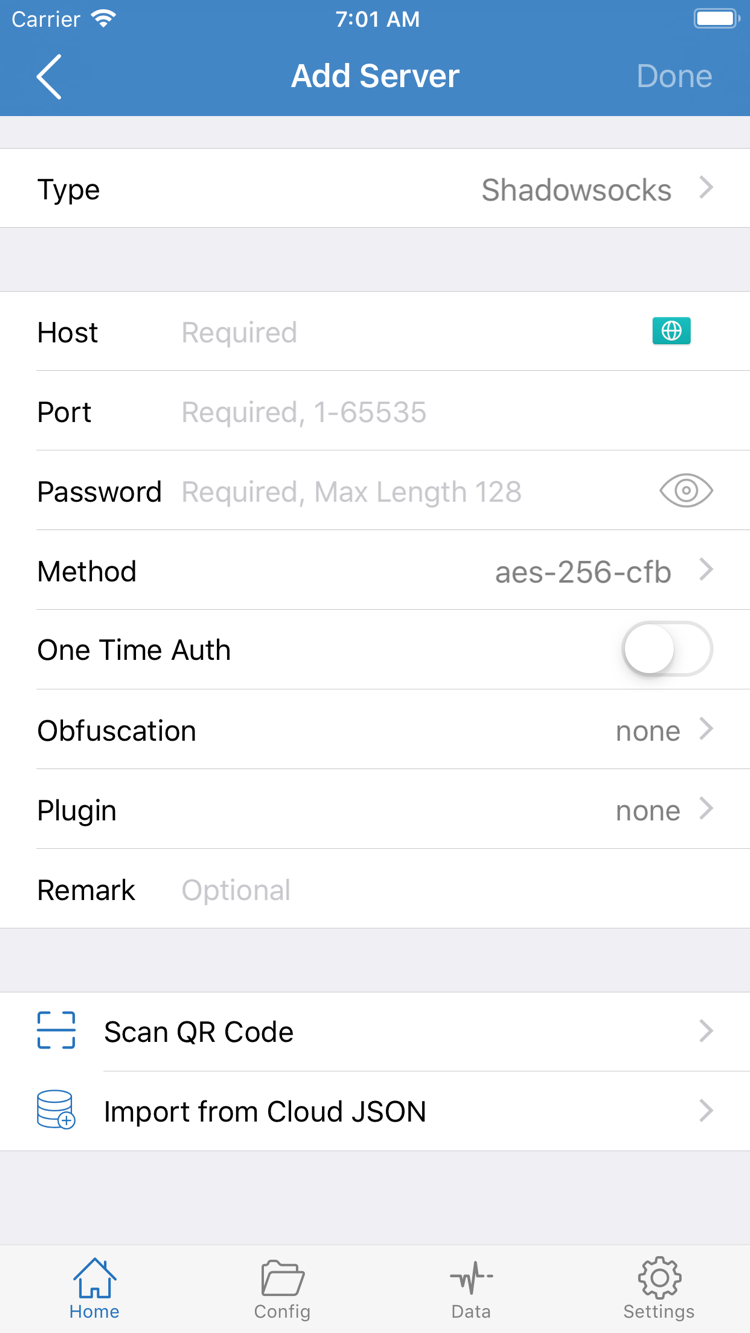
After installation, you can open Home and check the screen without turning on the connection switch. Not Connected shows the current connection status; it doesn’t mean the purchase failed. Buying the app on the App Store gives you the client. To establish a connection, you’ll also need your own existing subscription or server details. See Getting Started for setup steps.
“Add VPN Configurations” is a system permission
When you first enable a connection and the system hasn’t saved the relevant VPN configuration, your device will ask you to allow the configuration to be added. This permission lets the client use the system’s network features to establish a connection; it isn’t a second purchase confirmation. Make sure you initiated the connection, check where the prompt came from, then decide whether to allow it. The system may also ask for your device passcode or authentication.
After granting permission, you can find the related configuration under Settings → General → VPN & Device Management → VPN. The exact path depends on what your system displays. If you delete the VPN configuration, you may need to grant permission again the next time you connect. Deleting a system configuration won’t restore a purchase: network permissions and App Store purchase history are separate.
If the app is installed but the connection switch won’t stay on, check that your configuration is complete and system permission is granted, then check your network. For step-by-step instructions on importing a configuration, selecting Global Routing and testing the connection, read Getting Started. If you see a specific error, follow the relevant steps in the Troubleshooting guide.