Import Fails: Check the Source and Import Method
If no entry is created, first check that the source format matches the import method. Then verify that the link is complete and valid, and check your regular network. Being able to open a subscription URL doesn’t guarantee that it returns recognizable configuration data; a login page, error message, or empty response may prevent import. Don’t include private subscription details in public screenshots. If you need to confirm whether the source is valid, contact the provider of your existing service.
The Switch Won’t Stay On: Check System Authorization
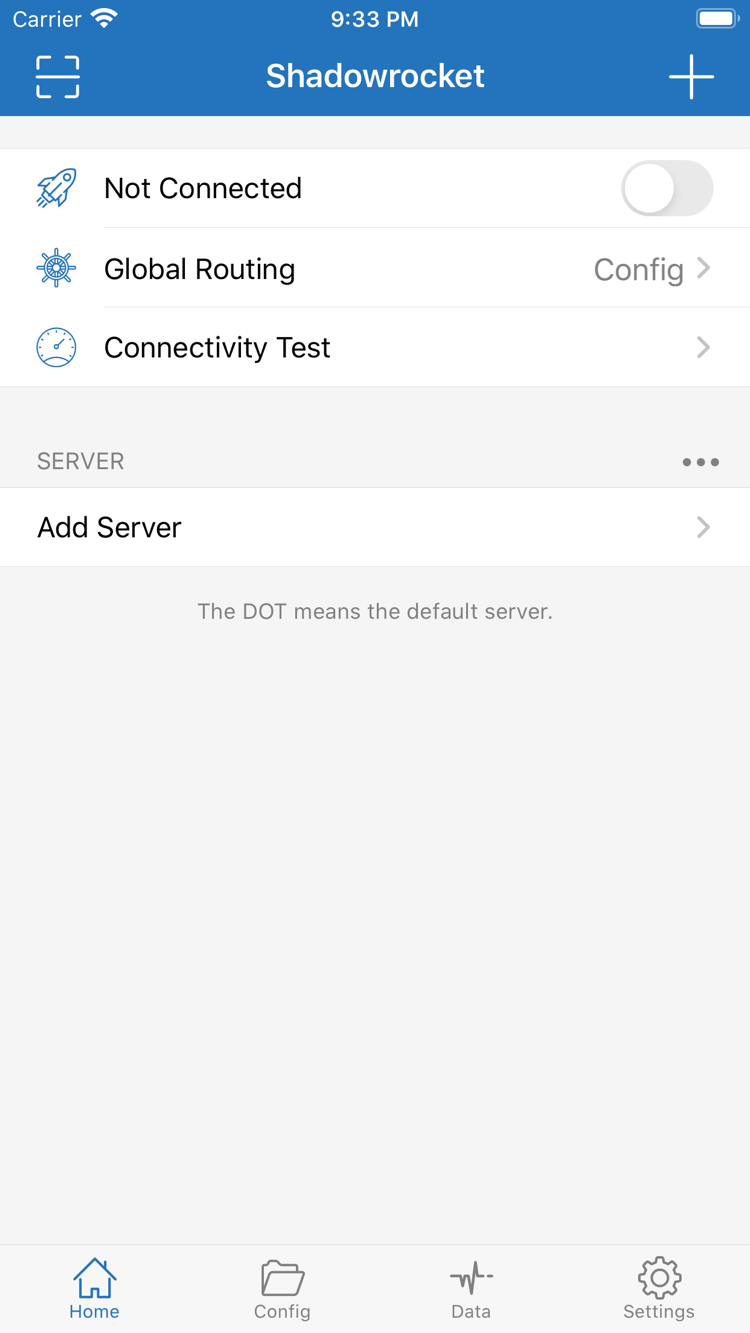
Return to the connection steps, confirm that authorization for the system VPN configuration is complete, and check whether another active VPN connection is affecting the current attempt. If the system VPN configuration was deleted, the app may need to request authorization again. First record the existing configuration and exact prompt, then follow the system process. Don’t make reinstalling your first troubleshooting step; before reinstalling, make sure you can restore your existing configuration.
Test Times Out or a Website Fails: Check the Test and Connection Separately
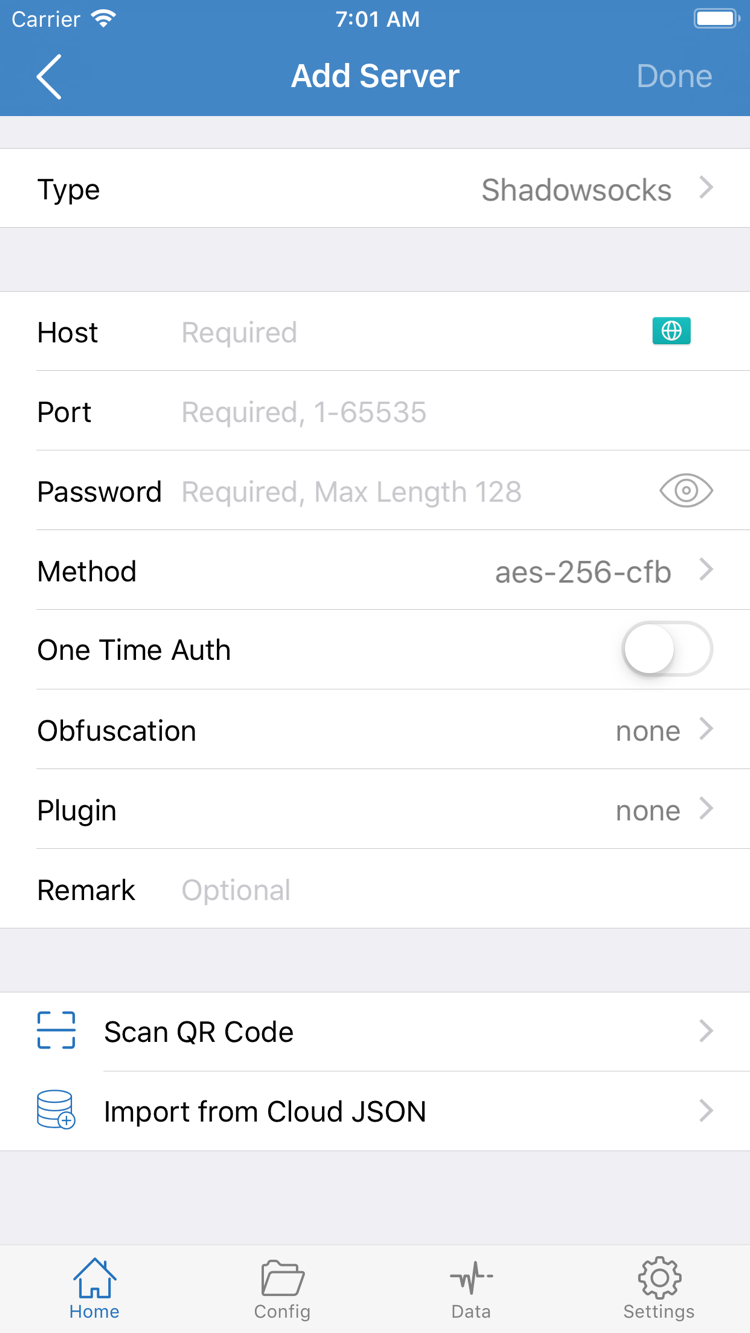
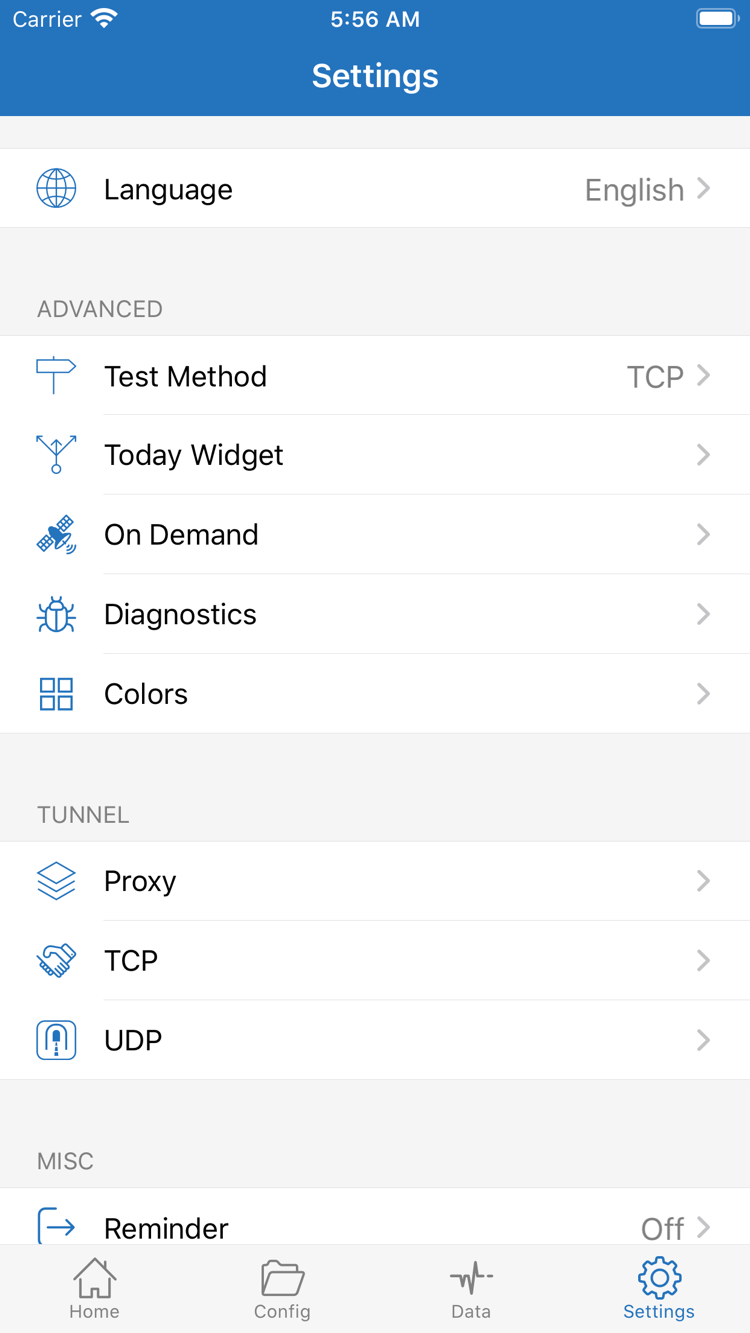
Open Settings and check Test Method, then repeat the test under the same conditions. If a test method returns no result, use actual website access as additional evidence; don’t treat one test value as the only measure. If repeated attempts to access websites also fail, return to Add Server and check Type, Host, Port, authentication, and TLS-related details against your source. Don’t randomly change ports or passwords.
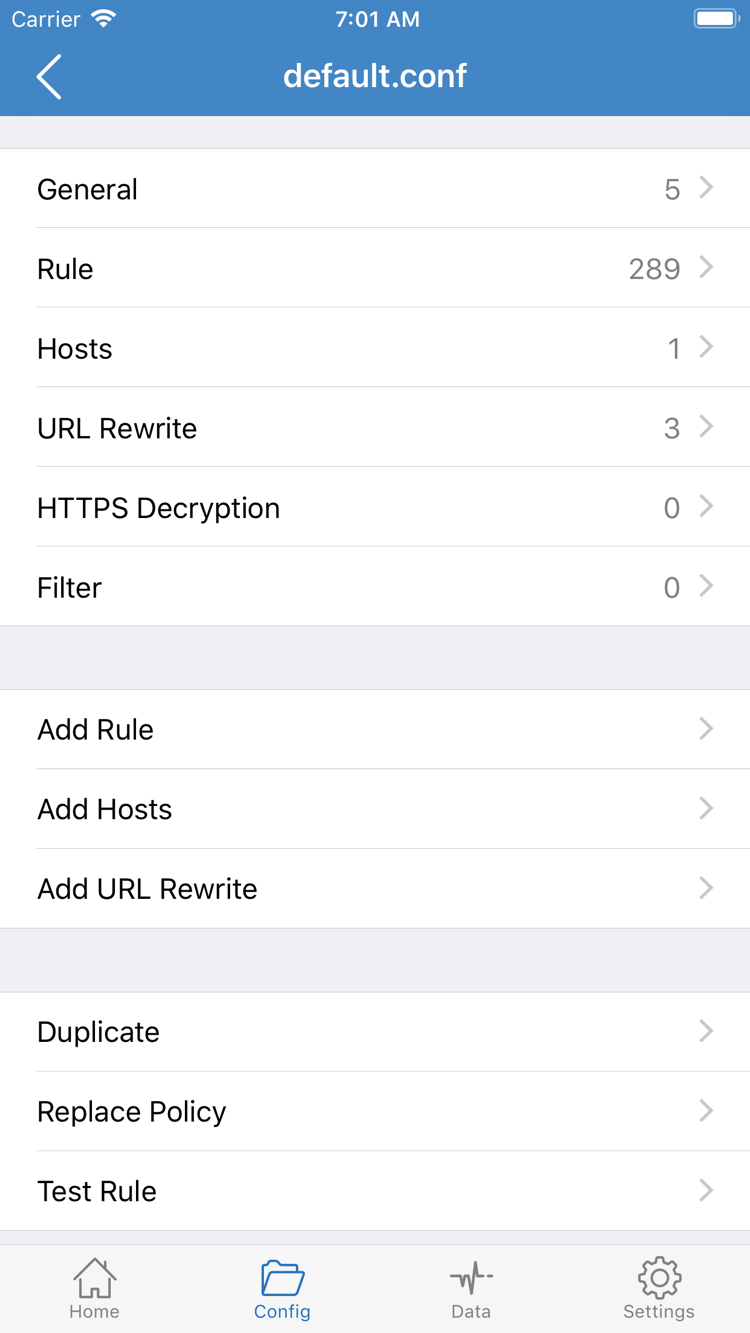
If Proxy works but Config fails, check Rule and DNS in the active configuration first. If the issue began after switching networks, note the difference between Wi-Fi and cellular, then check network reachability. Settings such as Proxy, TCP, and UDP serve different purposes; avoid changing them all during initial troubleshooting. Keeping the default or existing configuration usually makes it easier to identify the setting that actually changed the result.
Automatic Connection and Diagnostics: Record First, Then Troubleshoot
If the connection comes back after you manually disconnect, check the On Demand status and existing conditions in Settings. On Demand triggers connections based on conditions. During initial testing, record its current value; if needed, temporarily turn it off to compare with a manual connection, then restore it to suit your needs. Don’t mistake an automatic trigger for a faulty switch, and don’t add complex conditions before confirming that a manual connection works.
For more clues, open Diagnostics and review information related to your current attempt. Record the failed step, network type, mode, exact error message, and steps needed to reproduce the issue. Before sharing screenshots or logs, hide subscription URLs, passwords, authentication details, and personal network information. Logs can help narrow down the cause, but there’s usually no need to share your complete configuration publicly.
If the cause is still unclear, continue with the Connection Troubleshooting Manual for symptom-based guidance. For purchase, authorization, and common usage questions, see the FAQ. If a field is unclear, check the Glossary. Keep a record of the server, mode, and test results so you won’t have to repeat every step when troubleshooting further.