Official website · Official user manual

ShadowrocketSetup & Rule Configuration

Primarily an iPhone / iPad client with rule-based routing. Shadowrocket is a one-time purchase on the App Store. Import your existing subscription or server details, then configure the connection.

  • Rule routing
  • On Demand
  • Hysteria2

Check the App Store listing for system requirements and general purchase availability.

CONFIGURATION / 01

Feature overview and setup order

Verify the information you entered before deciding how traffic should be handled. Protocols, servers, configuration files, and system VPN authorization address different issues. Success in one area does not confirm that the entire connection works.

Rule-based routing: check order, then policy

On Home, set Global Routing to Config to match requests against the Rules in the active configuration, in order. Open Config and confirm which file is in use, then review the domain rules, IP range rules, and the position of FINAL. More specific rules usually belong before broader ones to prevent an earlier match from taking precedence. The example below shows rule syntax, not a complete configuration. Check the actual server selected for PROXY, then reconnect and test the target request after saving.

[Rule]
DOMAIN-SUFFIX,example.com,PROXY
IP-CIDR,192.168.0.0/16,DIRECT
FINAL,PROXY

The three Global Routing modes

Config processes requests using the selected configuration file and is useful for testing rule-based routing. Proxy sends most traffic through the proxy policy and can help isolate the effect of rules. Direct uses a direct connection. After switching modes, test the same destination again to compare results. Restore the mode you normally need when testing is complete; don’t leave a temporary troubleshooting setting in place.

A server entry determines where to connect; a configuration file determines how requests are handled; system authorization determines whether a VPN connection can be established. When access fails, identify the relevant layer before changing its settings. Changing the server, DNS, and entire configuration at once makes results hard to reproduce and can obscure the cause. See the glossary for field definitions and the feature guide for details on individual capabilities.

DEVICES / 02

Getting Shadowrocket on iPhone and iPad

Verify both devices using the same App Store product page. Check the purchase account, compatibility, and currently selected configuration separately; a connection working on another device does not replace checks on this one.

iPhone

After verifying the official App Store listing, purchase Shadowrocket or restore your purchase. When connecting for the first time, review the system prompt to authorize the VPN configuration, then return to Home and check the connection status. Installing the app does not mean server details are ready.

iPhone guide

iPad

Use the original purchasing account to check your purchase and general purchase availability. After importing, check the server and Config currently selected on this device. A wider interface does not change the verification steps; system VPN authorization must still be completed on this device.

iPad guide

Shadowrocket is also available for Mac and Apple TV on the same App Store product page. Check the listing for device compatibility, system requirements, and general purchase availability.

When using multiple devices, first check which account was used to purchase in the App Store; don’t rely only on the iCloud account shown at the top of system settings. These accounts may differ. After restoring the app, check whether the configuration file has synced, whether the server is selected, and whether the connection works after switching networks. App purchase history and your existing server authentication details are separate; restoring one does not restore the other.

FIRST CONNECTION / 03

Three checks for your first connection

View the full tutorial

01 / IMPORT

Add an existing server or subscription

Have your existing server details or subscription link ready. Enter individual server details under Add Server; for an existing link, choose the import option that matches its contents. After adding it, check the Type, address, port, and authentication fields to make sure you saved more than just a name.

02 / ROUTING

Choose Global Routing

For rule-based routing, select Config and confirm the active configuration file. Proxy and Direct can help you compare results but do not replace checking server details. Note the original mode before testing so you can restore it afterward.

03 / VERIFY

Turn on the connection and test access

On Home, turn on the connection and allow the VPN configuration when prompted by the system. Then run Connectivity Test and try the destination you actually need. Record the switch state, test result, and what happens when accessing the destination; don’t rely on just one of these indicators.

After connecting, run a repeatable test

Choose a specific destination and try it again on the same network. If the switch stays on but the page won’t load, first check the selected server and Global Routing. If only some domains fail, check DNS and Rule. If the switch immediately turns off, check system VPN authorization and configuration before changing routing rules repeatedly. Also note the conditions when problems occur, such as switching networks, waking the device, or reopening the app.

Don’t treat Connectivity Test results as actual throughput. Test method, destination, and current network all affect the result. “Server responded,” “domain resolved,” and “request succeeded” are three different outcomes. When something fails, keep relevant error details and redact subscription URLs, passwords, and authentication fields. Follow the connection troubleshooting guide to investigate by symptom.

APP STORE / 04

Verify, purchase, and restore Shadowrocket

Shadowrocket is a closed-source commercial app available exclusively on the App Store. Verify the identity, purchase terms, and compatibility shown on the product page; a name in search results alone is not enough.

  • Developer: Shadow Launch Technology Limited
  • App ID 932747118
  • One-time purchase

Developer, official icon, and App ID

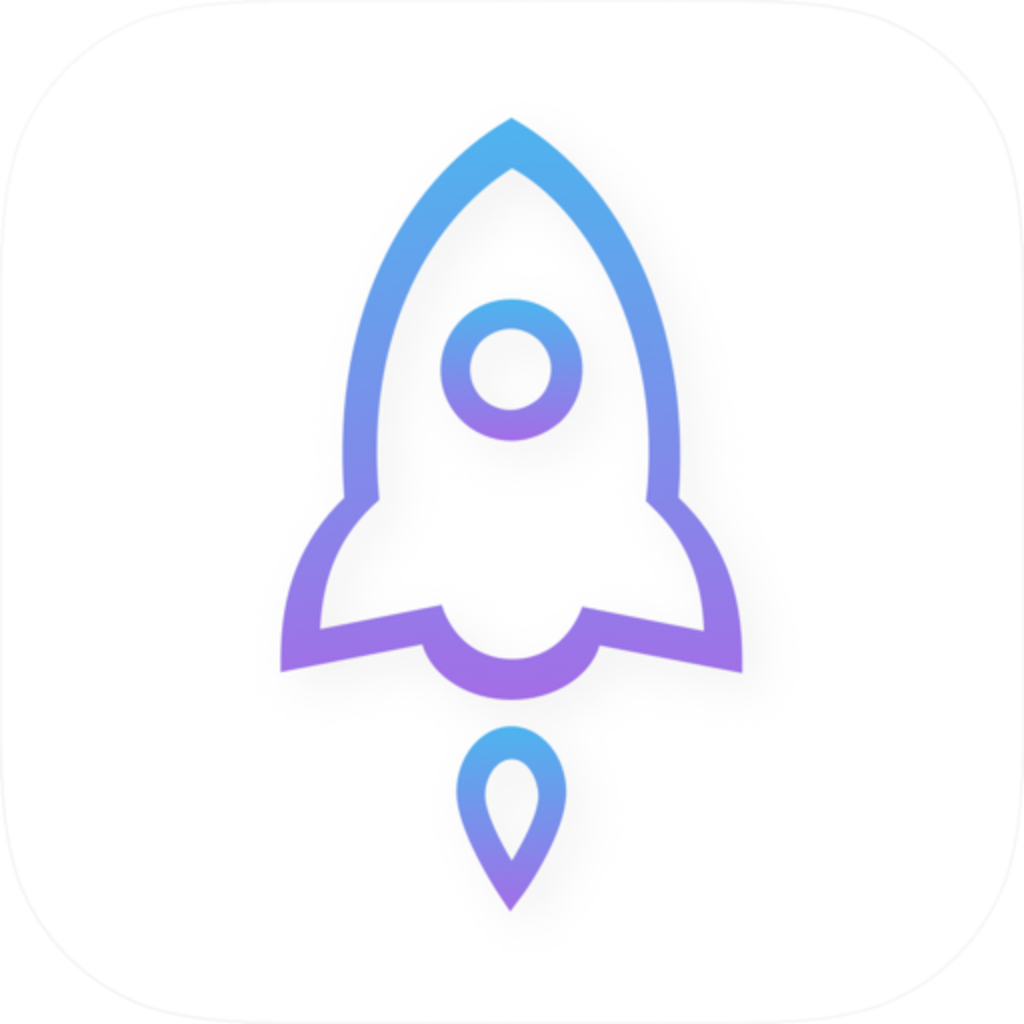
Official Shadowrocket icon: blue-purple outlined design on a white background

On the product page, first confirm the app name is Shadowrocket. Then check the developer or provider information for Shadow Launch Technology Limited and compare the official icon. The product page URL should end in id932747118. Verify the name, icon, and developer details together. Don’t skip checking the product page just because a search result ranks first or includes the name “Little Rocket.”

On the product page, you can also review compatibility, the app description, and App Store update history. System requirements are as listed on the App Store page; this guide does not specify a fixed OS version. If the system says your device is incompatible, check the entry for that device on the product page rather than assuming it qualifies because the app installs on another device. See the app authenticity guide for the full verification process.

App Store availability and account region

App Store content availability depends on the region set for the Apple ID used with the store. If you can’t find Shadowrocket, open your App Store account page, confirm the signed-in account, and check the country or region in its settings. Search results may differ between the mainland China storefront and other storefronts. Being able to view the product page on the web does not guarantee that your account can make the purchase.

Before changing your account region, review the requirements listed in your account and check matters such as account balance, active subscriptions, and payment method. Don’t repeatedly change settings before confirming your account status. For details on region and search visibility, see Apple ID region and App Store visibility checks. This guide explains how to check; it does not provide account services.

Check the app purchase and network service separately

The app purchase does not include a network service. The US reference price is $2.99 for a one-time app purchase. The App Store checkout page shows the actual price, taxes, and local currency. Buying Shadowrocket does not provide a server or subscription. Configuration requires your own existing subscription or server details.

This is the official website and manual. It does not provide, sell, or recommend servers or subscriptions. Check app purchase issues in your App Store account and order history. Check the address, authentication details, availability, and service status of an existing server against your own original information. Track these as separate issues so an expired subscription is not mistaken for a failed app purchase, or app installation for a complete connection setup.

Use purchases and restore purchases on both devices

To use Shadowrocket on iPhone and iPad, sign in to the App Store with the original purchasing account and find Shadowrocket in your purchased apps. Check the App Store listing for general purchase availability across the two devices. If you see a price instead of a redownload option, first check your account, purchase history, and the app’s identity rather than paying again immediately. Removing the app from a device does not remove its purchase record.

Redownloading restores the app, not necessarily its original configuration. After opening it, check the server entry, active Config, and system VPN authorization. If you use iCloud, also check the sync status and what is actually selected on this device. App updates are managed through the App Store. If a problem appears after an update, note what changed and record the symptoms before checking items one by one; don’t immediately clear all settings. See the restore purchases guide for the steps.

READING / 05

Topic guides and parameter checks

Choose an article for the issue you’re seeing: check fields for parameter errors, system settings for authorization problems, and your store account if the app doesn’t appear in search. Interface labels are kept in English so you can match them to the app.

For initial setup, follow the Getting Started guide in order. If you can connect but some requests fail, use the Troubleshooting guide to check by symptom. Quick answers about purchases, authorization, and imports are in the FAQ; see the glossary for rule keywords and protocol terms.

View all articles